A dual-monitor setup can transform the way you work, game, create, and browse.
But there's a catch.
Two monitors need more than two power cables and a little optimism. They need surface area, sensible positioning, cable management, and enough room for your keyboard, mouse, speakers, and other accessories.
That's where the desk itself becomes important.
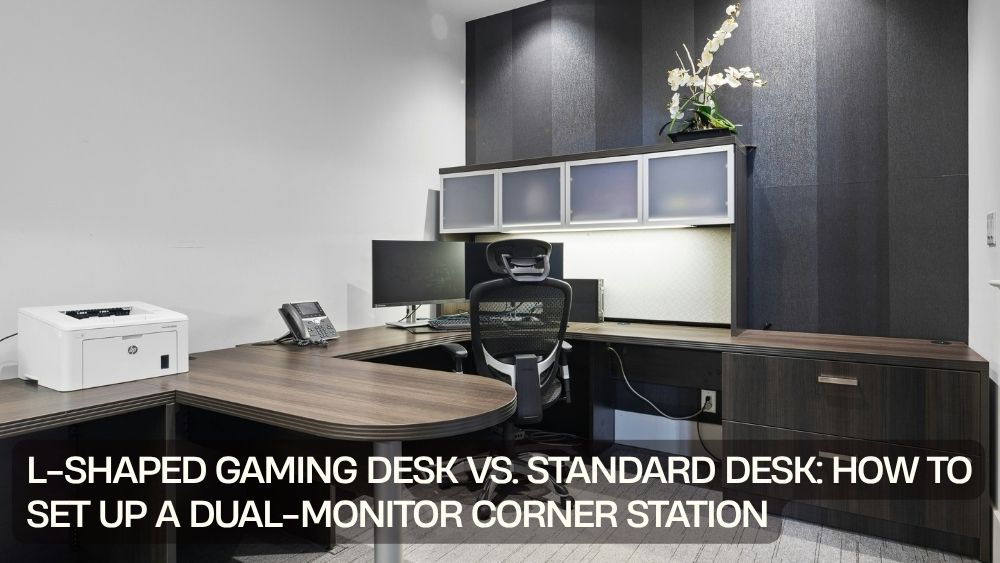
A standard rectangular desk can handle a dual-monitor setup, but an L-shaped gaming desk with monitor stand and LED lights offers another approach. Instead of pushing everything along one straight wall, an L-shaped workstation uses the corner of the room and creates two connected surfaces.
For gamers, remote workers, streamers, students, and creators, that extra dimension can make a corner much more functional.
But is an L-shaped desk actually better than a standard desk?
There isn't one answer for every room. The right choice depends on your available space, equipment, preferred layout, and how you use your workstation.
Let's compare both designs and walk through how to build a practical dual-monitor corner station.
Why Consider an L-Shaped Desk for Dual Monitors?
A dual-monitor setup naturally creates a demand for more workspace.
You might need room for:
- Two monitors
- Monitor stands or arms
- Gaming keyboard
- Gaming mouse
- Mouse pad
- Headset
- Speakers
- Controller
- Laptop
- Notebook
- Charging accessories
- Decorative items
A standard desk puts all of those items along one horizontal plane.
An L-shaped desk changes the geometry.
One side can become your primary gaming or work station while the other side handles secondary equipment, storage, accessories, or another computer.
That division can make the setup feel less crowded.
Instead of asking how much equipment you can squeeze onto one surface, you can give different activities their own zones.
L-Shaped Gaming Desk vs. Standard Desk
Both desk types have their strengths.
| Feature | L-Shaped Gaming Desk | Standard Desk |
|---|---|---|
| Corner efficiency | Excellent | Moderate |
| Dual-monitor setup | Very suitable | Suitable |
| Surface area | Usually larger | Varies |
| Multi-device setups | Excellent | Depends on size |
| Room flexibility | Best in corners | Easier to position |
| Secondary workstation | Easy to create | Usually requires more furniture |
| Cable organization | Can separate equipment by side | Usually concentrated |
| Open-room placement | Less flexible | More flexible |
| Best for | Corner stations and larger setups | Simple, compact workstations |
An L-shaped desk doesn't automatically provide a better gaming experience.
Its biggest advantage is how it uses space.
If your room already has an unused corner, that space can become the foundation of the workstation.
What Is an L-Shaped Gaming Desk With Monitor Stand & LED Lights?
An L-shaped gaming desk is designed around a right-angle workstation.
The two surfaces meet at a corner, creating an L-shaped footprint.
A model with a monitor stand adds dedicated elevation for your screens, while LED lighting can introduce an additional gaming-focused visual element.
The L-Shaped Computer Desk with Charging Station and Adjustable Shelf takes the concept beyond a simple tabletop by combining a corner-oriented layout with a charging station and adjustable shelf.
That combination can be useful if your workstation needs to support more than gaming.
You might use one side for your main monitor setup and the other for a laptop, printer, notebook, console, or accessories.
Explore the L-shaped desk collection when comparing different configurations for a corner workstation.
Step 1: Choose the Right Corner
Before assembling anything, identify the corner where your desk will live.
Measure both walls.
Don't just measure the width of the desk.
You need to account for:
- Baseboards
- Windows
- Doors
- Electrical outlets
- Radiators or vents
- Nearby furniture
- Chair movement
- Monitor depth
- Cable routing
A desk may technically fit into a corner while still making the room difficult to use.
Leave enough clearance for your chair.
You should be able to sit down, stand up, and move around the workstation without bumping into nearby furniture.
Step 2: Decide Which Side Is Your Main Station
An L-shaped desk gives you two connected work zones.
Use that advantage intentionally.
For example:
Primary side: Dual monitors, keyboard, mouse, and gaming equipment.
Secondary side: Laptop, speakers, charging station, documents, controller, or creative equipment.
Alternatively, you could use one side for gaming and the other for work.
This is particularly useful if you switch between professional and personal tasks throughout the day.
The physical separation helps prevent everything from becoming one giant pile of electronics.
Step 3: Position Your Dual Monitors
Dual monitors can be arranged in several ways.
Side-by-Side
This is the simplest setup.
Place both displays next to each other, with the primary monitor directly in front of you.
This works well for gaming plus communication, or productivity tasks that require multiple windows.
Angled Configuration
Angle the secondary monitor slightly toward you.
This can make an L-shaped desk feel more natural because the screens follow the corner rather than forming one perfectly straight line.
One Main Monitor + One Vertical Monitor
A vertical second monitor can be useful for:
- Chat
- Coding
- Documents
- Social media
- Long webpages
- Reference material
The best configuration depends on your work and gaming habits.
Don't automatically copy someone else's setup.
Build around the tasks you perform most often.
Step 4: Use a Monitor Stand or Arm to Free Desk Space
Monitor stands can consume valuable surface area.
A dedicated monitor stand or compatible monitor arm can raise displays and free some room underneath.
This creates space for your keyboard, controllers, notebooks, or other accessories.
The L-Shaped Gaming Desk with Monitor Stand & LED Lights concept is particularly useful here because screen elevation can help organize the workstation vertically as well as horizontally.
However, always verify compatibility and weight limits before mounting monitors to any arm or stand.
Step 5: Keep the Primary Monitor Centered
Your main monitor should generally sit directly in front of your primary seating position.
This matters more than making the entire setup look symmetrical.
If you spend most of your time gaming, center the display you use for gaming.
If the workstation is primarily for work, center the monitor you use for your main tasks.
The second monitor can sit to the side at a comfortable angle.
This simple arrangement can make the entire station feel more natural.
Step 6: Create a Dedicated Charging Zone
A modern gaming desk isn't just a monitor platform.
You may have:
- Smartphone
- Wireless headphones
- Game controller
- Mouse
- Keyboard
- Smartwatch
- Portable devices
A charging station can keep those devices organized.
The supplied L-Shaped Computer Desk with Charging Station and Adjustable Shelf includes a charging station, which can help make the desk more useful beyond the core gaming setup.

Keep charging cables organized and avoid creating a tangled cluster behind the desk.
If several devices are connected to power, use appropriate electrical equipment and avoid overloading outlets.
Step 7: Use the Adjustable Shelf Strategically
An adjustable shelf gives you another vertical storage layer.
Instead of placing everything on the main tabletop, use the shelf for items that don't need constant access.
Potential uses include:
- Controllers
- Small speakers
- Books
- Gaming accessories
- Storage boxes
- Office supplies
- Decorative items
The key is to keep your primary work surface clear.
Your keyboard and mouse need room to move.
Your monitors need a clear viewing area.
The shelf can handle the supporting cast.
Step 8: Build a Smart Cable-Management System
Dual monitors mean more cables.
Add a gaming PC, speakers, charging devices, LED lights, and accessories, and the back of the desk can quickly resemble a spaghetti convention.
Start by separating cables by purpose.
Display cables: Keep monitor connections together.
Power cables: Route them toward your power source.
Peripheral cables: Group keyboard, mouse, and other accessories.
Charging cables: Keep them close to the charging station.
Use cable clips, sleeves, ties, or under-desk management accessories where appropriate.
Leave enough slack for equipment movement.
Don't pull cables tight simply to make the setup look cleaner.
L-Shaped Desk for Gaming and Work From Home
One of the strongest arguments for an L-shaped desk is its ability to serve multiple purposes.
Imagine using one side for your gaming PC and monitors.
The other side becomes a work area.
During office hours, the secondary surface holds your laptop, notebook, and work accessories.
After work, you shift your attention to the gaming side.
This setup can be particularly useful for people who don't have a separate home office.
Instead of having a gaming desk and office desk competing for floor space, one L-shaped workstation can serve both purposes.
How to Make a Small Gaming Corner Feel Larger
An L-shaped desk can save corner space, but poor organization can still make the room feel crowded.
Use vertical space wherever possible.
Raise monitors.
Use adjustable shelving.
Mount headphones on a dedicated holder.
Keep frequently used accessories within reach but off the main work surface.
Avoid filling every available inch with RGB accessories.
A gaming setup doesn't need to look like a spaceship cockpit to function well.
Sometimes the cleanest setup is also the most comfortable.
Should You Put the PC on the Desk?
That depends on your available space and setup.
Keeping the PC on the desk can make components easier to see and access.
However, a large gaming tower can consume significant surface area.
If you place it on the floor, keep it away from carpet when possible and ensure adequate airflow.
Never block ventilation openings.
If the desk has enough space underneath, you may also be able to position the tower beside the workstation while keeping the main tabletop clear.
LED Lighting: Style or Function?
LED lighting is often associated with gaming aesthetics, but it can also help define the workstation.
You can use LED lighting to create a visual boundary around the gaming area, especially in a room that serves multiple purposes.
However, lighting should complement your display setup rather than interfere with it.
Avoid placing bright lights where they create reflections on your monitors.
For a more comfortable environment, use ambient lighting around the room instead of relying entirely on bright LEDs.
L-Shaped Desk Setup for Streamers and Creators
Content creators can benefit from the extra surface area too.
One side can support the primary computer and monitor arrangement.
The other can hold:
- Microphone
- Audio interface
- Camera
- Notebook
- Controller
- Lighting controls
- Secondary laptop
- Editing equipment
This creates a natural production zone.
For streamers, the extra surface can also provide room for a microphone arm without forcing every accessory into the same small area.
When a Standard Desk Makes More Sense
An L-shaped desk isn't ideal for everyone.
A standard desk may be better if:
- Your room doesn't have a suitable corner.
- You frequently move your workstation.
- You have limited floor width but enough wall length.
- You prefer a minimalist setup.
- You use only one monitor.
- You don't need a large equipment surface.
- You want maximum flexibility when rearranging furniture.
A conventional rectangular desk is also often easier to relocate.
The best desk is ultimately the one that fits the room and your actual routine.
Common Dual-Monitor Setup Mistakes
Putting Both Monitors Too Far Apart
If you constantly turn your head to see the second screen, adjust the positioning.
Ignoring Monitor Height
Your primary display should be positioned at a comfortable viewing height.
Sacrificing Mouse Space
Don't let accessories consume the area you need for mouse movement.
Forgetting Chair Clearance
The desk may fit, but can you actually sit comfortably?
Measure the chair space before installation.
Creating a Cable Mountain
Plan cable routing before plugging everything in.
Overloading the Desktop
A bigger desk doesn't mean every surface needs to be occupied.
Leave working space.
A Practical Dual-Monitor L-Shaped Gaming Setup
Here's a simple layout to get started:
Primary corner: Main gaming monitor.
Second monitor: Positioned beside the main display and angled toward you.
Keyboard and mouse: Centered with your primary screen.
Gaming PC: Under or beside the desk where airflow remains unobstructed.
Adjustable shelf: Controllers, books, accessories, and smaller equipment.
Charging station: Phone, headphones, controller, and other rechargeable devices.
LED lighting: Behind or around the desk where it creates ambient illumination without screen glare.
Cable management: Group power and data cables separately.
This setup keeps the important equipment within reach without allowing every accessory to compete for the same surface.
How to Decide Between an L-Shaped and Standard Desk
Ask yourself five questions:
- Do I already have an unused corner?
- Do I use two or more monitors?
- Do I need separate zones for gaming and work?
- Do I need additional surface area for accessories?
- Would a corner workstation improve the way I use my room?
If the answer to several of these is yes, an L-shaped layout may suit your needs.
If your setup is simple and mobile, a standard desk may be more practical.
Final Thoughts
A dual-monitor setup needs more than two screens.
It needs thoughtful positioning, enough workspace, comfortable viewing angles, sensible cable management, and a layout that fits the room.
That's where an L-Shaped Gaming Desk with Monitor Stand & LED Lights can become useful.
By turning an otherwise underused corner into a dedicated workstation, an L-shaped desk can provide separate zones for monitors, gaming equipment, work accessories, charging devices, and storage.
The L-Shaped Computer Desk with Charging Station and Adjustable Shelf adds another layer of functionality with its charging station and adjustable shelf, making it suitable for setups that need more than a basic tabletop.
Still, a standard desk can be the better fit for a simpler workstation or a room where flexibility matters more than corner efficiency.
The important thing is to design around your actual equipment and habits.
Measure the corner first.
Plan your monitor positions.
Give your mouse enough room.
Keep cables under control.
Use vertical storage.
And leave enough open space for the workstation to remain comfortable.
A great dual-monitor setup isn't about cramming the most technology into the smallest possible corner.
It's about making the technology feel like it belongs there.